

Tips for Setting Up a Gaming Laptop the Right Way
You have just got your hands on a new gaming laptop. The excitement is real. But before you jump into your favorite game, take a moment. Many gamers make simple setup mistakes that can cut performance by 10 percent or more. Setting up a gaming laptop correctly ensures you get the speed, graphics and battery life you paid for. Dubai Laptop Rental provides professional Gaming Laptop Rental Dubai services for gamers, businesses and events across the UAE.
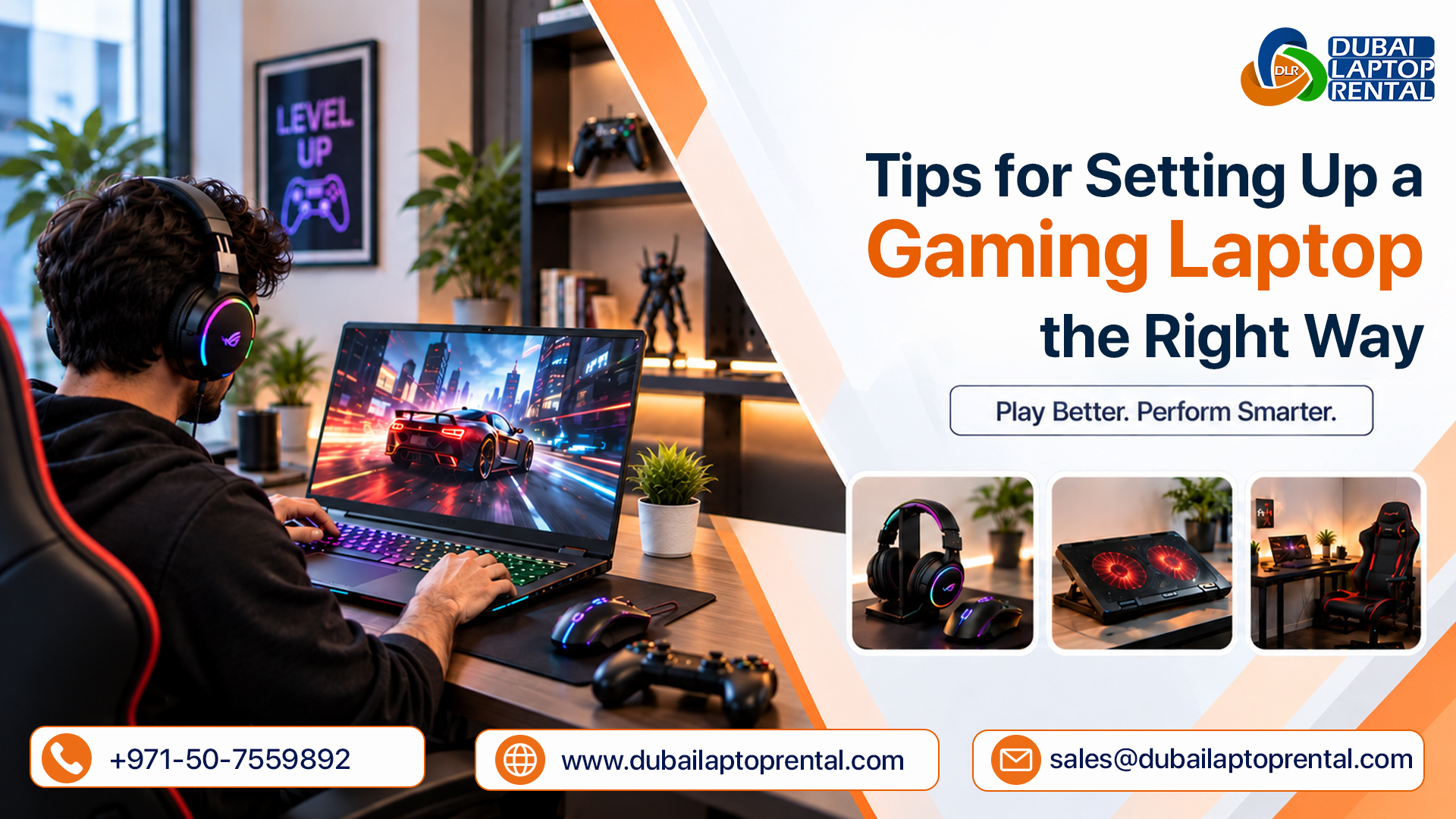
Mistake 1 – Using Default Power Settings
Most gaming laptops come with “Balanced” or “Power Saver” mode by default, limiting CPU and GPU performance.
Fix: Go to Settings > System > Power & Battery, then select “Best Performance” when plugged in. Always game with your charger connected. Without it, frame rates can drop by half.
Mistake 2 – Running in Hybrid GPU Mode
Hybrid GPU mode adds latency because frames pass through the integrated GPU before reaching the display.
Fix: Open your manufacturer’s control software and switch from Hybrid GPU to dGPU-only mode. This frees system memory and removes rendering bottlenecks.
Mistake 3 – Skipping Driver Updates
Outdated graphics drivers lack game-specific optimizations and hurt performance.
Fix: Use GeForce Experience (NVIDIA), AMD Software Adrenalin (AMD), or your laptop’s support app to update drivers. For best results, clean-install drivers with Display Driver Uninstaller (DDU).
Mistake 4 – Ignoring Airflow and Cooling
Sustained GPU temperatures above 90°C cause thermal throttling. Soft surfaces block vents and trap heat.
Fix: Use your laptop on a flat, hard surface. Consider a cooling pad, raise the rear for better airflow and clean dust from vents regularly.
Mistake 5 – Leaving Bloatware Installed
Pre-installed software runs in the background and consumes RAM and CPU cycles.
Fix: Go to Settings > Apps > Apps & features. Uninstall programs you do not need. Keep only essential system software.
Mistake 6 – Forgetting to Set the Correct Refresh Rate
Windows sometimes defaults to 60Hz even on high-refresh-rate screens (120Hz, 144Hz, or higher).
Fix: Right-click desktop > Display Settings > Advanced display settings > Select the highest refresh rate available.
Final Thoughts
Setting up your gaming laptop correctly is not complicated. Switch to dGPU-only mode, update your drivers, use the “Best Performance” power plan and keep vents clear. These simple steps unlock your laptop’s true potential. For reliable Gaming Laptop Rental Dubai services, choose a provider with well-maintained, high-performance devices for events and short-term needs.
Dubai Laptop Rental provides professional Gaming Laptop Rental in Dubai and across the UAE. Visit www.dubailaptoprental.com to learn more. Call or WhatsApp +971-50-7559892 to discuss your gaming laptop requirements today.